> ## Documentation Index
> Fetch the complete documentation index at: https://docs.projectdiscovery.io/llms.txt
> Use this file to discover all available pages before exploring further.
# Asset Policies
## Introduction
[Asset Policies](https://cloud.projectdiscovery.io/assets/policies) allow you to define rules that automatically take actions on assets in your ProjectDiscovery Cloud inventory.
Policies evaluate asset properties against defined conditions and perform an action when those conditions match. Supported actions include:
* Sending notifications to configured channels (e.g., Slack, Microsoft Teams, etc.)
* Deleting assets
* Adding labels
* Removing labels
This enables you to continuously enforce inventory rules, whether you're cleaning up noise, classifying infrastructure, or monitoring sensitive exposure.
## Why asset policies matter
As your asset inventory grows, it becomes harder to notice the changes that matter.
New assets get discovered, existing assets change, and risky patterns can appear without anyone looking at the dashboard at the right time. Asset policies can help detect scenarios like:
* A new admin panel getting exposed
* A sensitive port becomes reachable
* A host starts returning `401/403`
* An unexpected technology appears
* CDN-backed hosts cluttering production views
* Placeholder or noisy assets keep getting added
Asset Policies let you define such rules and trigger alerts when corresponding asset patterns appear. It also allows you to enforce rules that help organize your inventory (adding or removing labels) and remove unwanted assets.
## Walkthrough
To get started navigate directly to: [https://cloud-dev.projectdiscovery.io/assets/policies](https://cloud-dev.projectdiscovery.io/assets/policies) or you can visit the **Policies** tab in the Inventory or Asset Groups pages.
Let's dive in to the details with the help of an example scenario
You manage the office.com asset group.
You've identified that subdomains under `www.webhook.office.com` returning HTTP `401` are misconfigured endpoints that should not exist in inventory.
You want to:
* Automatically remove these assets
* Ensure future occurrences are handled without manual review
To create a policy for the above example, follow the below steps
**Step 1: Define the trigger conditions**
You start by selecting the asset group on which the policy will be applied. Then define what "misconfigured endpoint" means in your environment.
In this case,
* Host is `www.webhook.office.com`
* Response is `401`
Conditions use AND logic and hence both must match.
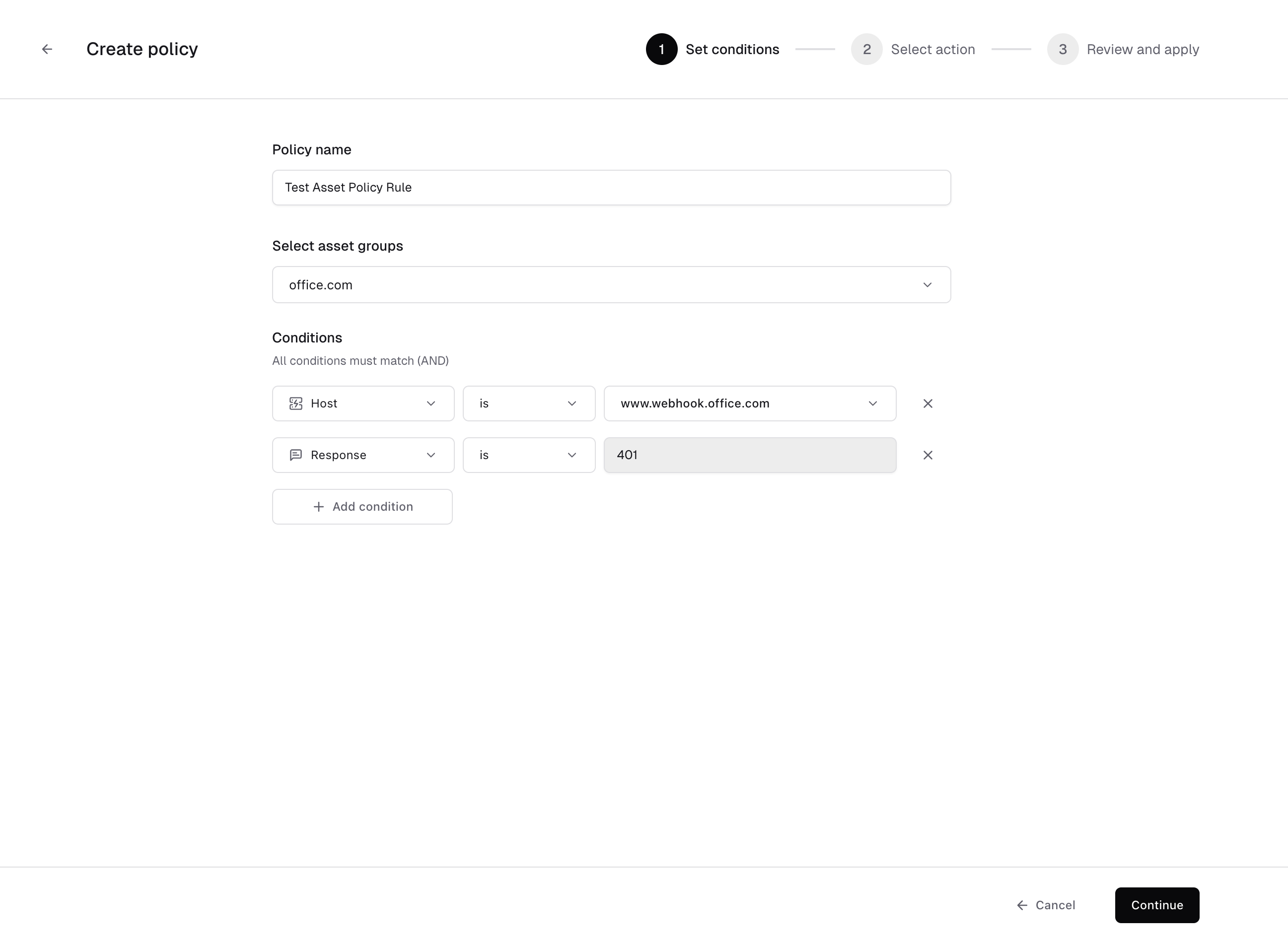 At this point, you've defined the pattern. Similarly, you can define the criteria for other conditions as needed.
**Step 2: Choose the Action**
Now you decide what should happen when a match occurs.
For this scenario, the goal is cleanup.
You select:
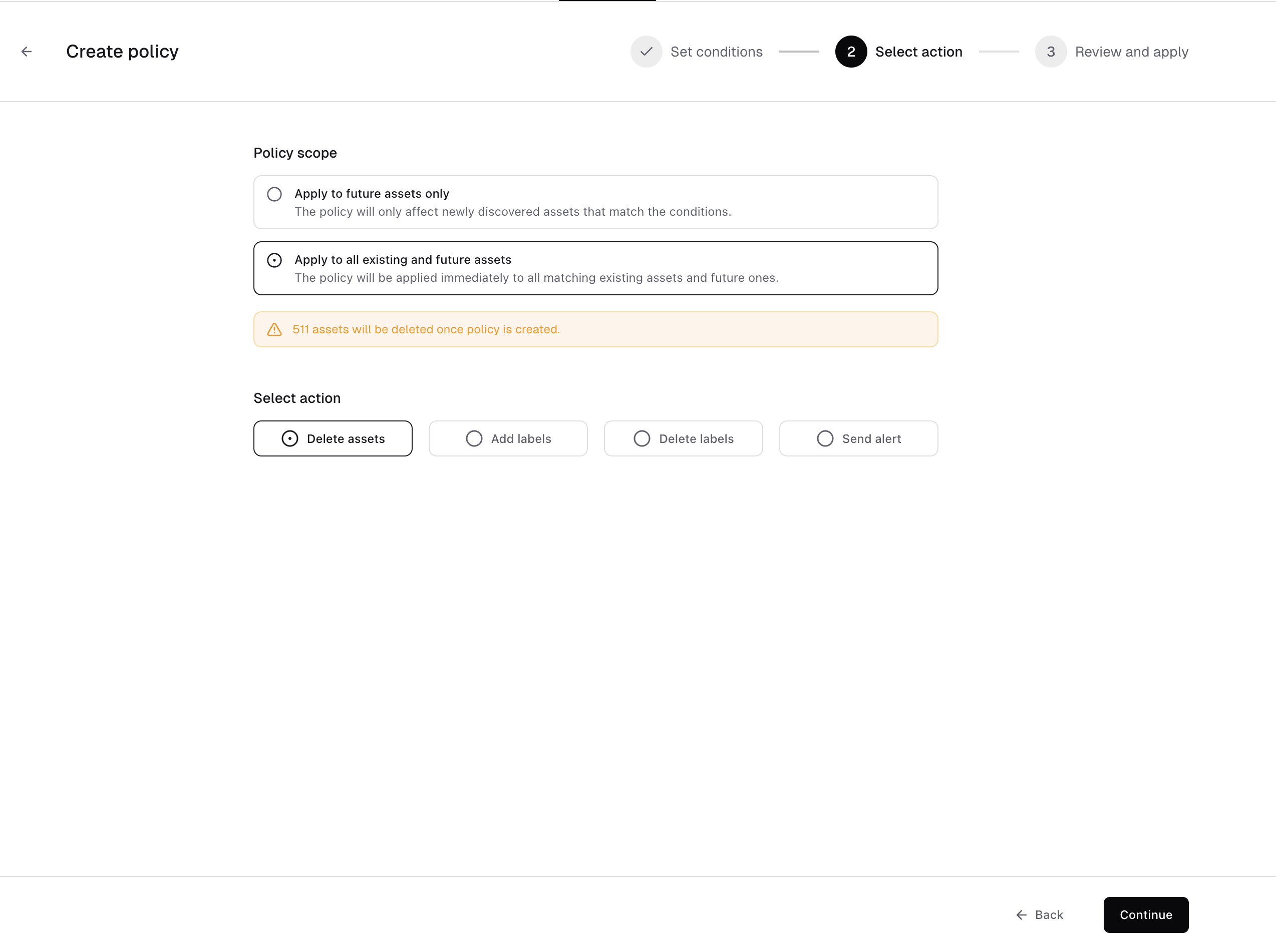
* **Policy scope:** Apply to all existing and future assets
* **Action:** Delete assets
This immediately removes any existing assets that match the rule and ensures that future discoveries under `www.webhook.office.com` returning `401` are automatically deleted.
At this point, you've defined the pattern. Similarly, you can define the criteria for other conditions as needed.
**Step 2: Choose the Action**
Now you decide what should happen when a match occurs.
For this scenario, the goal is cleanup.
You select:
* **Policy scope:** Apply to all existing and future assets
* **Action:** Delete assets
This immediately removes any existing assets that match the rule and ensures that future discoveries under `www.webhook.office.com` returning `401` are automatically deleted.
 **Other Available Actions**
While this example focuses on deletion, Asset Policies support multiple response types depending on your objective:
* **Add labels -** Automatically classify matching assets
* **Delete labels -** Remove outdated or incorrect classification
* **Send alert** - Notify your team when matching assets are discovered or updated
For example:
* Instead of deleting `401` hosts, you could label them as `unauthorized` for review.
* Instead of modifying the asset, you could trigger a Slack alert for investigation.
* You could automatically tag all WordPress installations with a `cms` label.
The action you pick decides what the policy is used for:
* **Clean up** your inventory (delete assets or remove labels)
* **Organize** assets (add labels)
* **Get notified** when something matches (send alerts)
**Step 3: Review and apply**
This is the last checkpoint before activation.
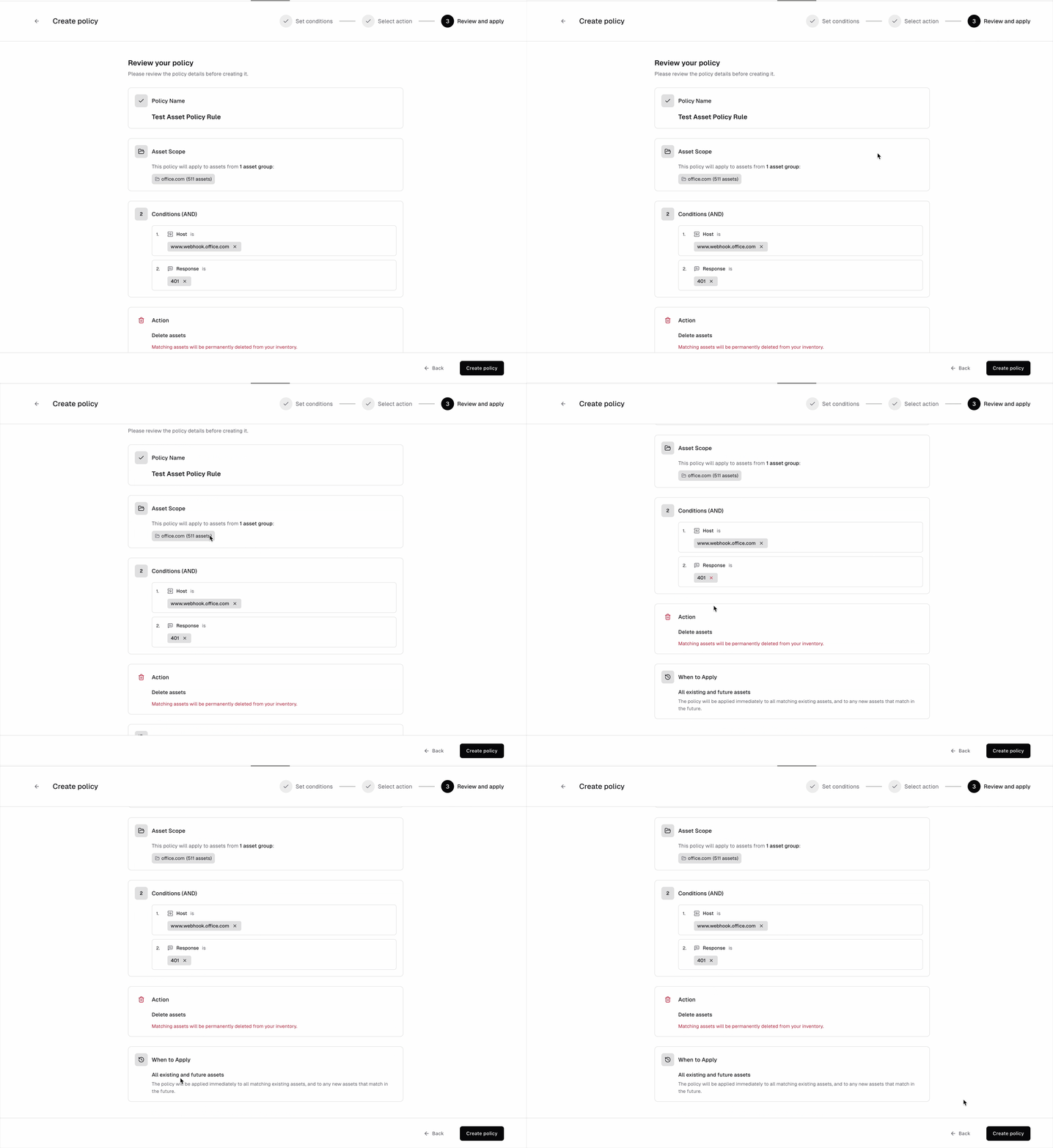
On the review page, confirm:
* The **asset group** selection is correct
* The **conditions** match what you intend
* The **action** is correct (especially if delete action is selected)
* The **scope** is correct (future-only vs existing+future)
Once you click **Create Policy**, the policy becomes active.
**Other Available Actions**
While this example focuses on deletion, Asset Policies support multiple response types depending on your objective:
* **Add labels -** Automatically classify matching assets
* **Delete labels -** Remove outdated or incorrect classification
* **Send alert** - Notify your team when matching assets are discovered or updated
For example:
* Instead of deleting `401` hosts, you could label them as `unauthorized` for review.
* Instead of modifying the asset, you could trigger a Slack alert for investigation.
* You could automatically tag all WordPress installations with a `cms` label.
The action you pick decides what the policy is used for:
* **Clean up** your inventory (delete assets or remove labels)
* **Organize** assets (add labels)
* **Get notified** when something matches (send alerts)
**Step 3: Review and apply**
This is the last checkpoint before activation.
On the review page, confirm:
* The **asset group** selection is correct
* The **conditions** match what you intend
* The **action** is correct (especially if delete action is selected)
* The **scope** is correct (future-only vs existing+future)
Once you click **Create Policy**, the policy becomes active.
 ## Tracking policy executions
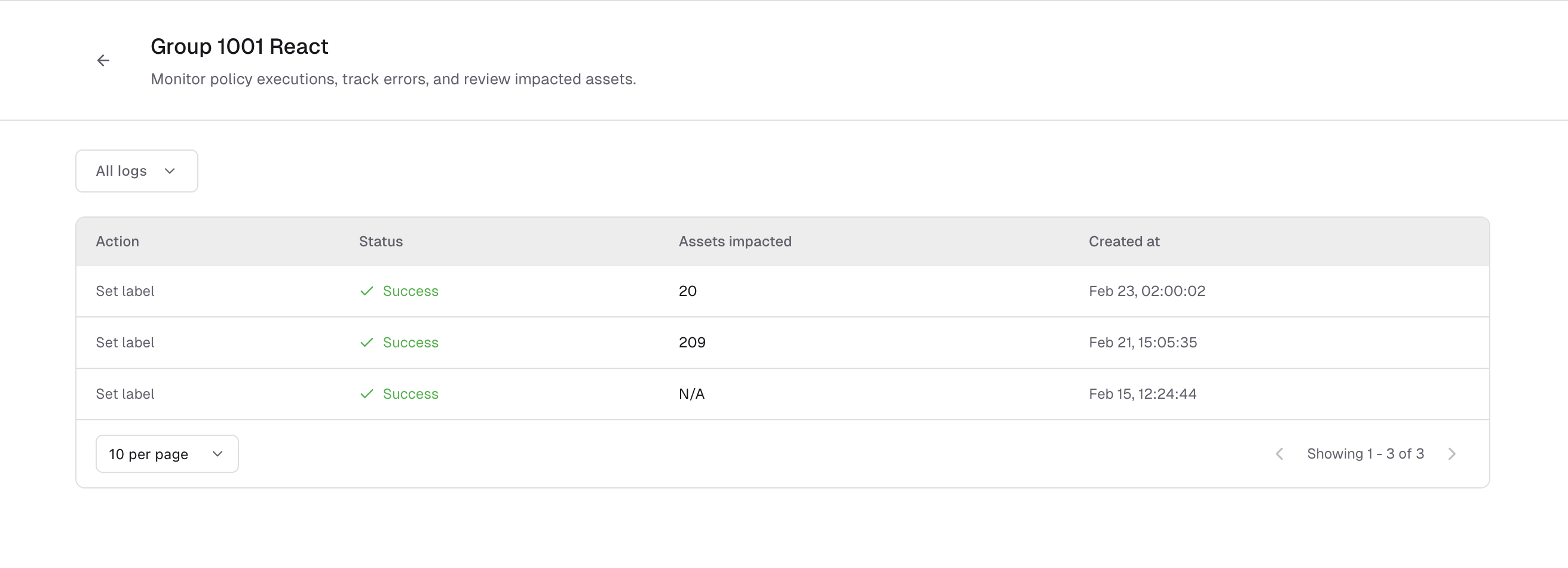
Every time a policy runs, the action is recorded. You can view execution details from the policy page.
The execution log shows the action, status of a particular policy run, number of impacted assets and timestamp.
This helps you:
* Confirm that the policy is working as expected
* See how many assets were affected
* Review past activity for audit or troubleshooting
All policy activity is visible here, whether the action was deleting assets, updating labels, or sending alerts.
## Tracking policy executions
Every time a policy runs, the action is recorded. You can view execution details from the policy page.
The execution log shows the action, status of a particular policy run, number of impacted assets and timestamp.
This helps you:
* Confirm that the policy is working as expected
* See how many assets were affected
* Review past activity for audit or troubleshooting
All policy activity is visible here, whether the action was deleting assets, updating labels, or sending alerts.