> ## Documentation Index
> Fetch the complete documentation index at: https://docs.projectdiscovery.io/llms.txt
> Use this file to discover all available pages before exploring further.
# Custom vulnerability automation
> Incorporate your internal reports to build custom automation
## Summary
Every organization is unique in their tech stack composition. You need to detect and remediate a whole range of vulnerabilities that are not just limited to publicly known attacks.
Our Cloud platform can automate scanning for almost any kind of vulnerability, including those you know about internally, across your environments.
Review this use case to walk through an example to create a template for custom automation.
 ## Custom automation
Imagine your penetration testing team found a critical vulnerability on `app.hooli.com`. Now, you want to inspect to look for this vulnerability on your other instances or ensure it does not reappear in the future on the same app:
### Example
```
SQL Injection vulnerability in app.hooli.com/login. This vulnerability can potentially allow an attacker to bypass our authorization system and gain access to any given user account. This is a very critical vulnerability that needs to be patched.
HTTP Request:
POST /login HTTP/1.1
Host: app.hooli.com
User-Agent: Mozilla/5.0
Content-Type: application/x-www-form-urlencoded
username=admin&password=' OR '1'='1
HTTP Response:
HTTP/1.1 200 OK
Content-Type: text/html
Content-Length: 1337
Server: Apache
...
## Custom automation
Imagine your penetration testing team found a critical vulnerability on `app.hooli.com`. Now, you want to inspect to look for this vulnerability on your other instances or ensure it does not reappear in the future on the same app:
### Example
```
SQL Injection vulnerability in app.hooli.com/login. This vulnerability can potentially allow an attacker to bypass our authorization system and gain access to any given user account. This is a very critical vulnerability that needs to be patched.
HTTP Request:
POST /login HTTP/1.1
Host: app.hooli.com
User-Agent: Mozilla/5.0
Content-Type: application/x-www-form-urlencoded
username=admin&password=' OR '1'='1
HTTP Response:
HTTP/1.1 200 OK
Content-Type: text/html
Content-Length: 1337
Server: Apache
...
Welcome back, admin
...
The application improperly handles user input in the password field, leading to an SQL Injection vulnerability.
```
### Create a Custom Template
Follow the steps below to build a custom template and automation.
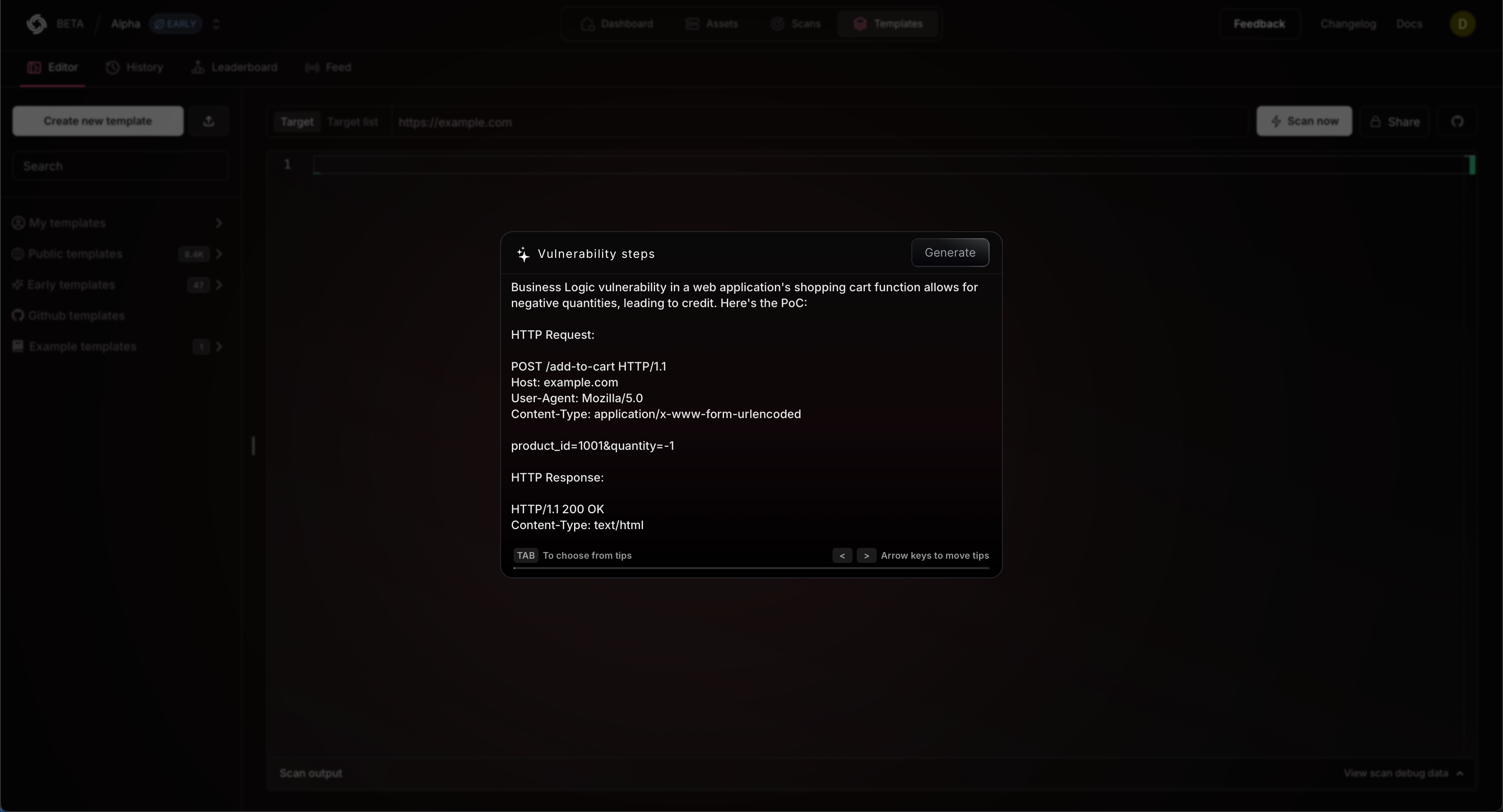
Navigate to [https://cloud.projectdiscovery.io/templates](https://cloud.projectdiscovery.io/templates) and select **Start with AI** to open the workflow.
Paste your template and click **Generate** to build a new custom template.
* This will take a moment to create a new template.
* *Use the example above to test this functionality out.*
Our template language is easy and versatile, allowing you to write nearly any type of vulnerability test.
* To make additional edits check out our [templates doc](/templates/introduction) to learn more.
Navigate to [https://cloud.projectdiscovery.io/scans](https://cloud.projectdiscovery.io/scans) and select **Create New Scan** to open the workflow to create a new scan using the template
you just created.
## What's Next?
This workflow can quickly turn your internal vulnerability knowledge into continuous scans.
Monitor across your tech stack to see its match and re-appearance after the fix. This approach helps identify similar matches and reappearances after implementing fixes.
Through these customizations you can easily build a security monitoring system that expands upon the expertise and data of your security teams.
* Review [scanning basics](/cloud/scanning/overview)
* Explore [continuous scanning](/cloud/examples/continuousscan)
* Check for a [trending vulnerability](/cloud/examples/trending)